

UpCloud is a cloud hosting company offering an hourly billed infrastructure-as-a-service. Its mission is to provide the highest performing servers with extremely redundant infrastructure to the most demanding customers.
Deployment Guide:
1. Sign in to TryDirect.
2. Go to the STACKS page and find the stack you want to deploy. Click the "DEPLOY TO" button.
3. Choose UpCloud from the dropdown list.
4. Find the "Connect Provider" section. The form requires a Login and Password for connecting UpCloud and interacting with its API. You will need to sign in to the UpCloud, create a subaccount, copy your login and password and paste them into the form fields. We highly recommend creating a sub account user in the UpCloud dashboard rather than use the root account for security reasons! Do not use a root account. Even TryDirect is not keeping any user 3-d party credentials in the database.
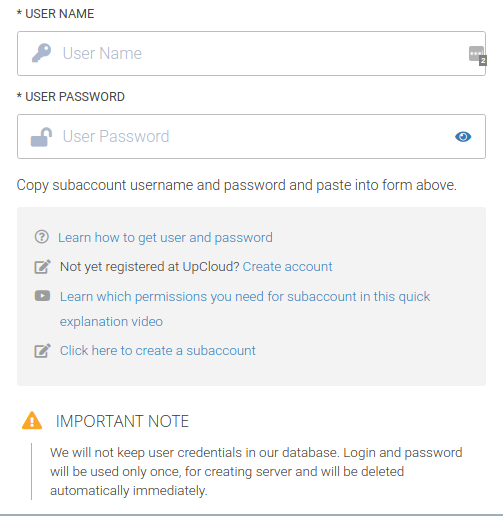
5. Then fill in all blank fields like Base Domain Name, SSL, OS, Region, and Server with details you want and click the Deploy button.
6. The deployment process begins. You may see the progress status and wait 5-15 minutes until it is completed. After it is 100 % completed, refresh the TryDirect page and click the Info icon to learn how to install the SSL certificate.
7. Currently, TryDirect offers two options for docker container management: Portainer and Status Panel. The Status Panel is easy to use and mainly used to help with SSL setup. Portainer is a more advanced tool. You can check the status of all deployed containers on your server using any of these tools. You should receive an e-mail notification with the link to your server IP address, login and password right after the stack is successfully deployed.
When SSL certificate installation is finished, Status Panel can be paused or removed.