

Scaleway is a unique IaaS platform that provides simple and powerful features to take control of the cloud in seconds. It affords dedicated, consistent, predictable performances on SSD cloud servers.
Deployment Guide
1. Log in to your account on TryDirect.
2. Go to the STACKS page and find the stack application you want to deploy. Click the "Deploy To" button.
3. Choose Scaleway Provider
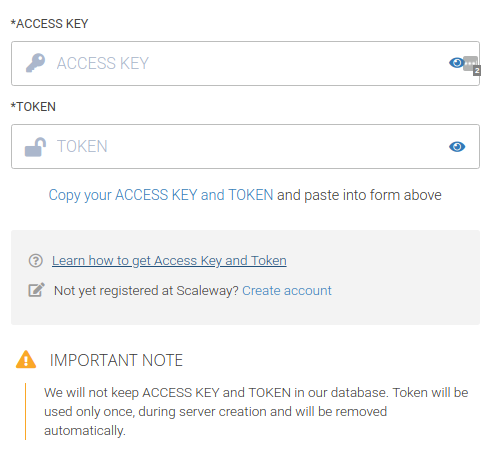
4. You will find a notification that you need to add your Access Key and API Token Key from your Scaleway account by scrolling down. This simplifies the process and speeds it up. Don’t worry, we will not keep your data in our database. It will be automatically deleted after the deployment is completed. API tokens are unique identifiers associated with your Scaleway account and consist of an Access Key and a Secret Key. The Secret key (Token) is required to authenticate via API and will only be displayed when you create the token. Make sure to write it down or save it in any other way and keep it secret.
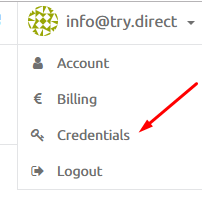
5. To find your SECRET KEY and ACCESS KEY, go to your Scaleway account. Open the pull-down menu on your account name and click the “My credentials” link.
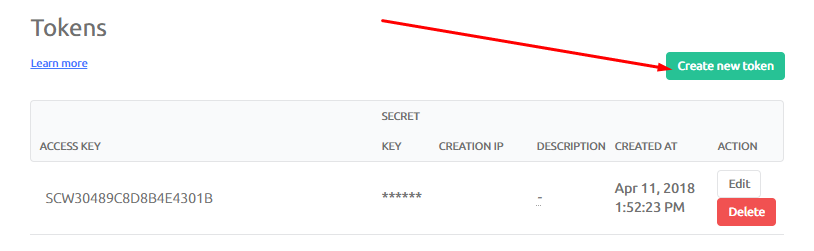
6. To generate a new token, click the ‘Create New Token’ option in the Tokens section of the page.
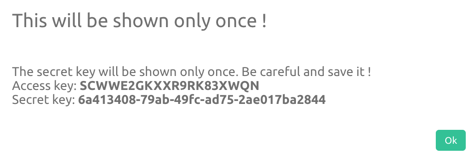
7. The Access Key and the Secret Key will appear on your screen. Save the Secret Key as it will not be recoverable.
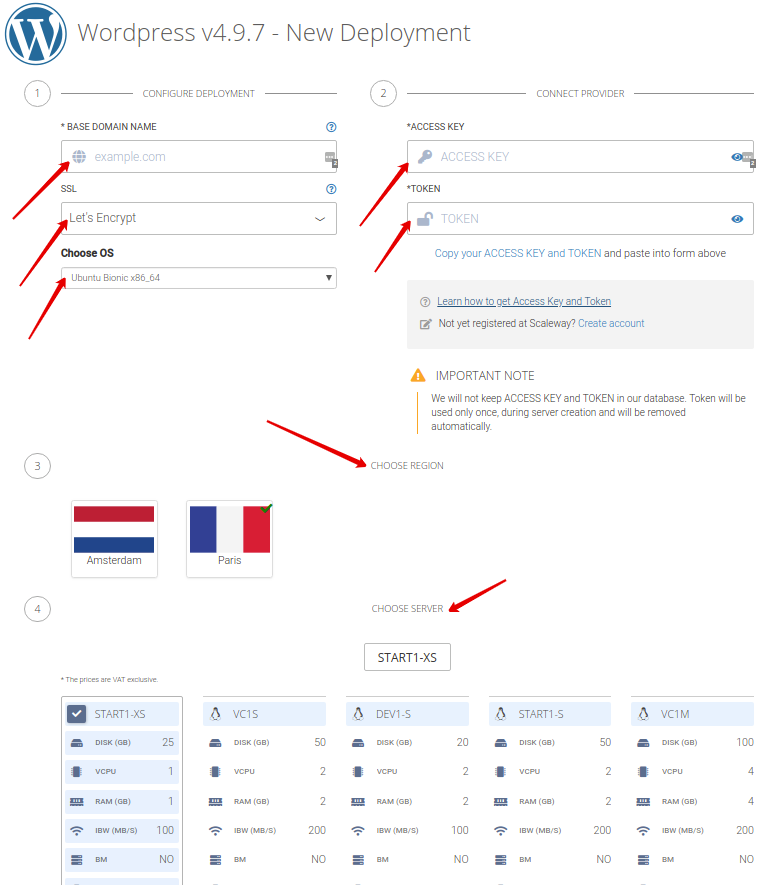
8. Copy the ACCESS KEY and the SECRET KEY (token) and paste it into the required field on TryDirect Page.
9. Then fill in all the blank fields like Base Domain Name, SSL, OS, Region, and Server with the details you want and click the Deploy button.
10. The deployment process begins. You may see the progress status and wait 10-15 minutes until it is completed. After it is 100 % completed, refresh the TryDirect page and click the Info icon to find out how to install the SSL certificate.
11. TryDirect offers to deploy a specific stack application called Status Panel. The Status Panel is aimed to help you activate/deactivate SSL certificates. Here you can also check the status of all deployed services on your server. Right after the stack is successfully deployed, you will receive an e-mail notification with the link to your server IP address, login, and password. The Status Panel will be available at http://your_server_ip:5000