

Linode is a virtual private server provider company offering the fastest hardware and network in the industry with scalable environments. Its clients have access to Linux virtual servers on high-speed internet connections.
Deployment Guide
The deployment process is straightforward. Let’s start:
1. Sign in to TryDirect. You may also want to sign in with your Linode account.
2. Go to the STACKS page, find the stack you'd like to deploy, and click the "DEPLOY TO" button.
3. Choose Linode.
4. Scroll down and find the notification that you need to add your API Token from your Linode account.
Note: If you are logged in as a Linode account, you won’t have to add this code because it is already automatically generated.
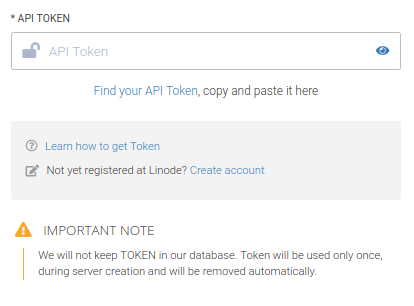
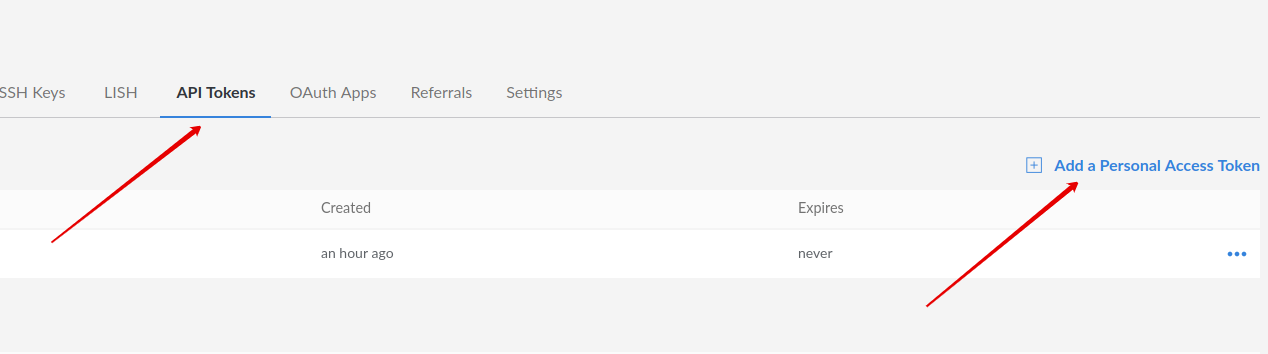
5. To find your API token go to the link “Click here to get your API token” or use the link below:
https://manager.linode.com/profile/api
Open the API Tokens tab and click Add a Personal Access Token.
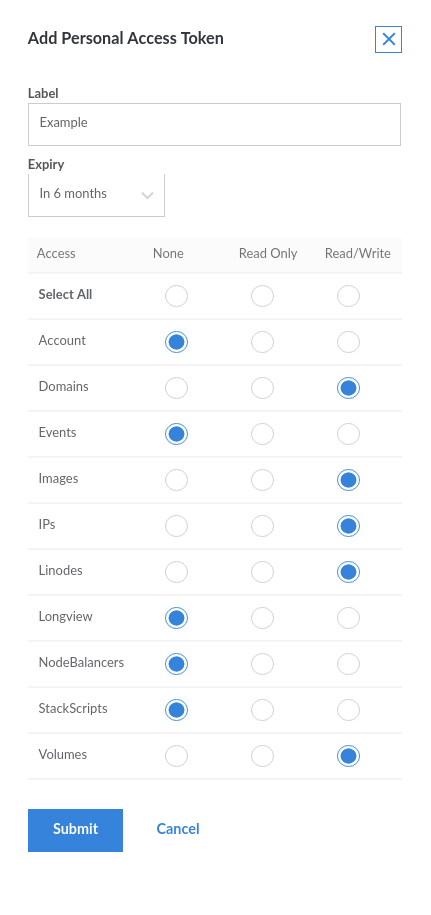
6. Complete the fields below and click "Submit."
7. Please copy the key now, because it won’t be shown anymore.
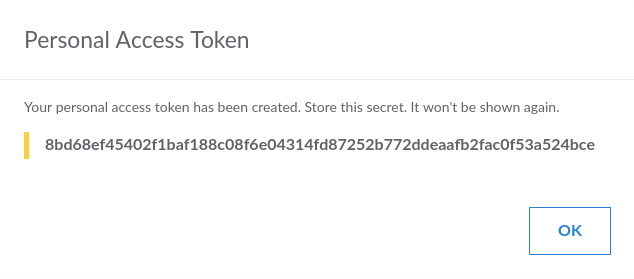
8. Now go back to the TryDirect page and add the code in the required field.
9. Then again, scroll up to fill in all blank fields like Base Domain Name, SSL, OS, Region, and Server with details you want and click the Deploy button HELP docs for other providers.
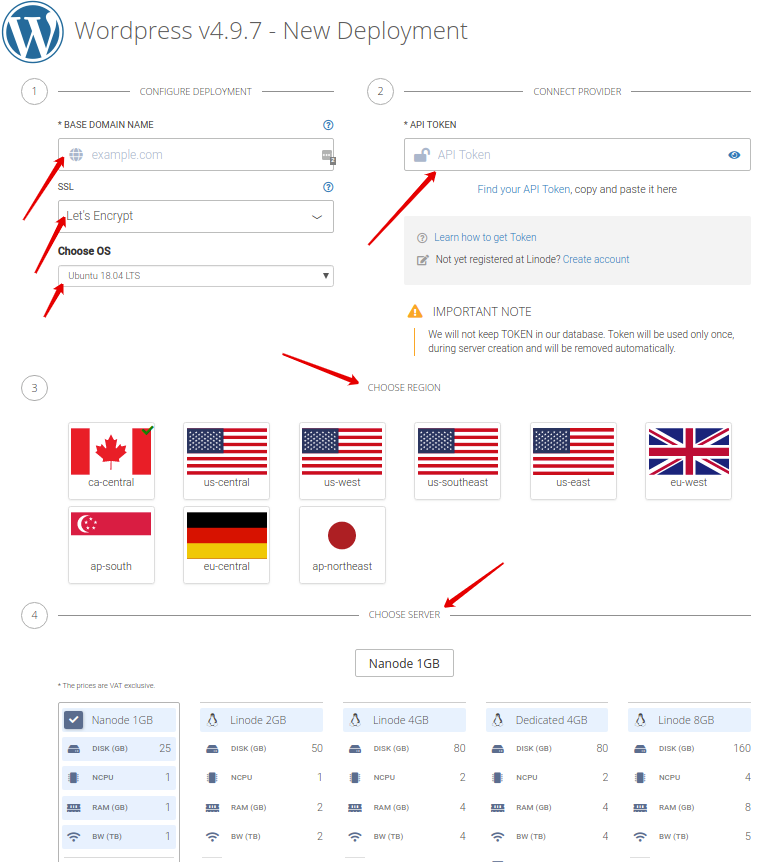
10. The deployment process begins. You may see the progress status and wait 2-3 minutes until it is completed. After it is 100 % completed, refresh the TryDirect page and click the Info icon to find out how to apply the SSL certificate.

11. TryDirect offers to include a specific stack application - Status Panel. The Status Panel is used to help you activate/deactivate SSL certificates. Here you can also check the status of all deployed services on your server. Right after the stack is successfully deployed, you will receive an e-mail notification with the link to your server IP address, login, and password. The Status Panel link will look like this http://your_server_ip:5000
When SSL certificate installation is completed, the deployment process begins. You may see the progress status and wait 10-15 minutes until it is completed. After it is 100 % completed, refresh the TryDirect page and click the Info icon to know how to install the SSL certificate. done, Status Panel can be deactivated or removed.