Hetzner Cloud is an Internet hosting company and data center operator providing. It provides dedicated hosting, shared web hosting, virtual private servers, managed servers, domain names, and cloud solutions.
Deployment Guide:
1. Log into your account at TryDirect.
2. Go to the STACKS page and find the stack you'd want to deploy. Click the "DEPLOY TO" button.
3. Choose Hetzner Cloud from the dropdown menu.
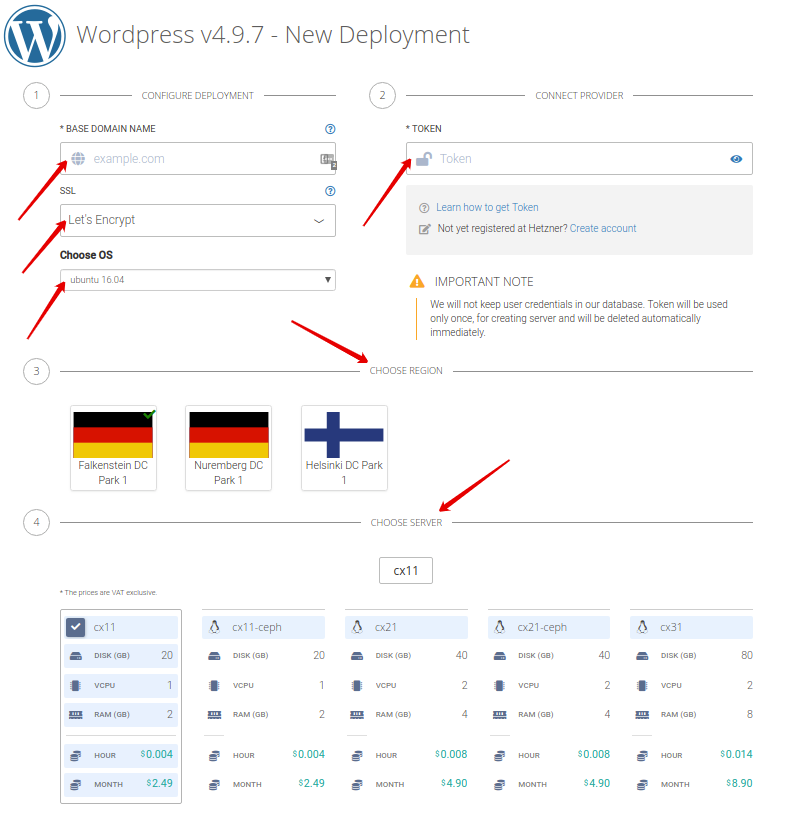
4. Find the "TOKEN" input field under the "Connect Provider" section. Here you have to enter your API Token from your Hetzner Cloud account.
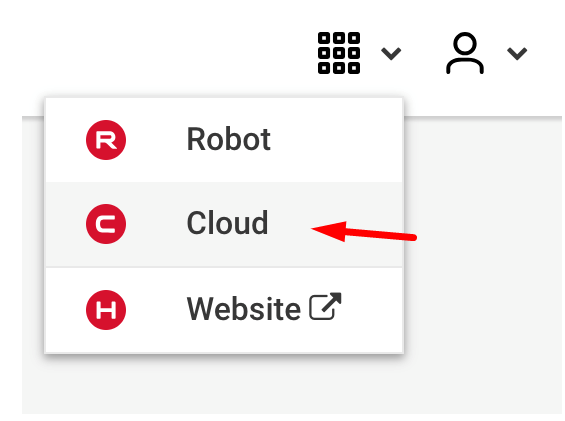
5. Open a new tab in your browser and go to your Hetzner Cloud account. Choose “Cloud” from the dropdown menu on the right side of your dashboard.
6. Create a new project if you don’t have one. If you already have one, then just click it.
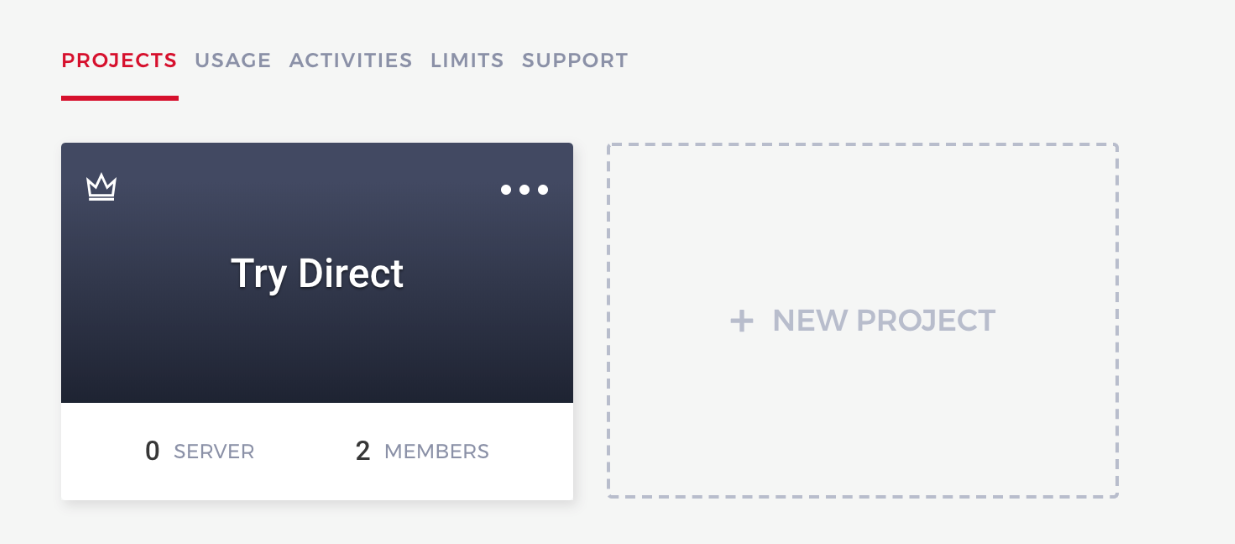
Note: There are some charges when creating new projects on Hetzner.
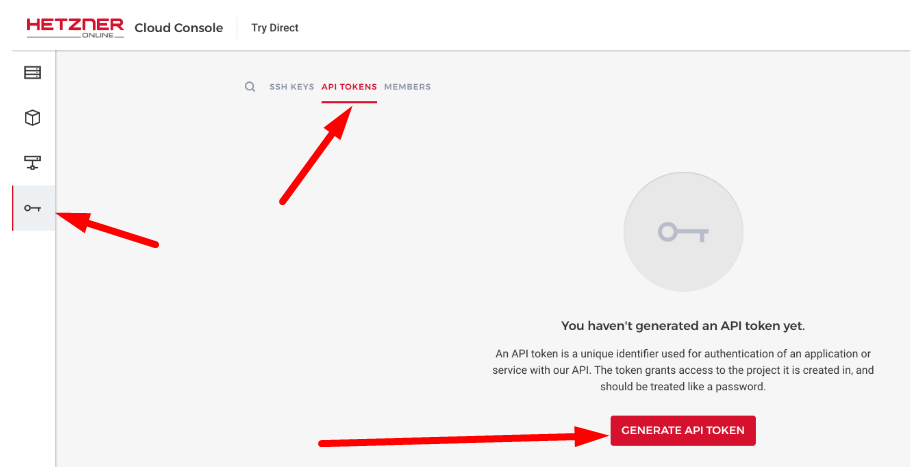
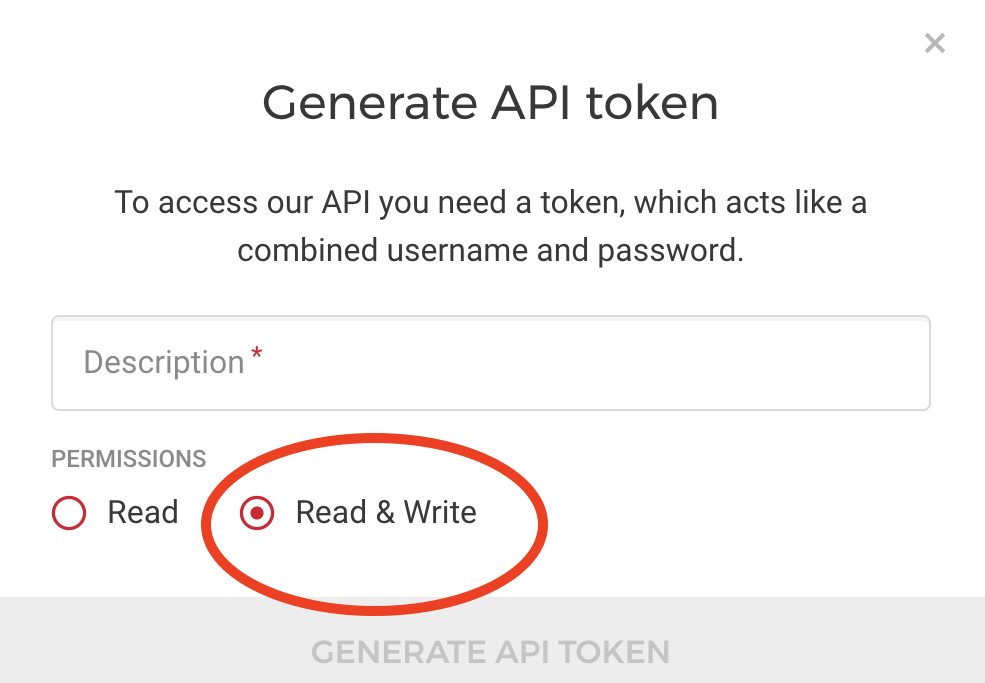
7. On the left sidebar, find the Access menu, select the API TOKENS tab and click the Generate API Token.
Do not forget to set "Read & Write" permissions!
8. Hetzner will provide you with a new API token key. Please copy it and save it to a file or store it in the password manager, because you will need it later and it won’t be shown at Hetzner anymore.
9. Now, go back to the TryDirect page and add the key in the required "TOKEN" field.
10. Then fill in all mandatory blank fields like "Base Domain Name", "SSL", "OS", "Region" and "Server type" and click the "Deploy" button.
11. The deployment process begins. You may see the progress status and wait 2-3 minutes until it is completed. After it is 100 % completed, refresh the TryDirect page and click on the Info icon to know how to apply the SSL certificate.

12. TryDirect offers two options for stack application management.
Portainer - advanced docker container management tool, open-source
Status Panel - a simple docker container management tool developed by TryDirect community developers, open-source, which has limitations.
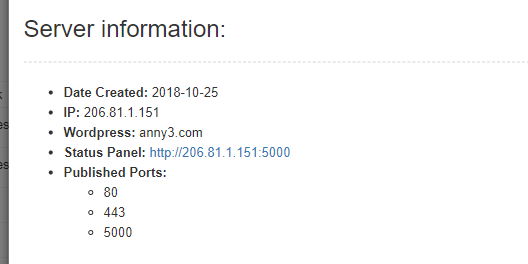
With Status Panel you can set up SSL in one click using certbot. You will receive an e-mail notification with the link to your server IP address, login and password right after the stack is successfully deployed. You will also be able to check the status of all deployed containers on your server.