

Google Cloud Platform includes a range of hosted services for computing, storage, and application development on Google hardware.
Deployment Guide
If you have an existing Google Cloud account, you can sign in on TryDirect from your Google Cloud account and enjoy this experience. However, before you can proceed, you will be asked to grant access to your Google Cloud account to TryDirect. Follow the steps:
- Create a Project
- Enable Compute Engine API
- Enable Project's Billing
Let’s go deep into the details.
1. How To Create Project ID
First, you need to create a Project ID. Please start with the new project creation.
(a) With Google Cloud Platform Console, you can create up to 1000 projects.
(b) Now, you need to connect this new project to TryDirect. You can identify it by using the Project ID or the Project Number.
The Project ID is a customized name you choose when creating a new project. The Project Number is automatically generated by the server. To obtain the Project ID and the Project Number:
- Go to Google Cloud Platform Console
- Select your project
- Find Project Info on the Dashboard menu.
Here the Project ID and Project Number are displayed.
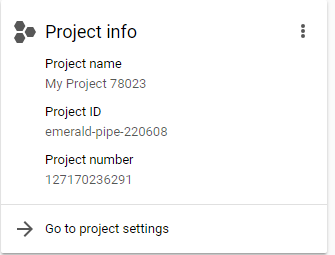
Now copy and paste the Project ID into to TryDirect form as shown below.

2. Enable Compute Engine API
After getting your Product ID, you have to enable a Compute Engine API:
(a) Link TryDirect with your project
(b) Add monitoring pages
(c) Enable billing for that API (required)
How to Enable an API
In order to enable an API for your project you need to use the GCP Console:
- Enter Google Cloud Platform Console API Library, or follow this link.
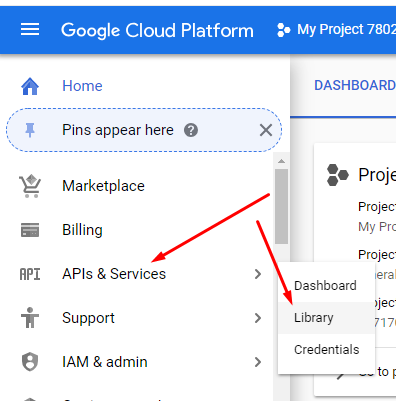
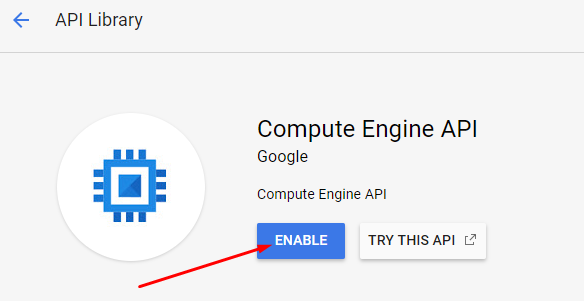
- Search for “Compute Engine API” in the API Library and click on it
- On the API page, click ENABLE.
3. Enable Billing for Project
Because Google requires some charges, you have to Enable Billing for the project. If you don't have a billing account, you must create one and Enable Billing.
Here is how to enable billing in your Google Cloud Platform Console
- Go to Google Cloud Platform Console
- Select the project
- Open the left side menu and select Billing
- Click Link a billing account
- Click Set account
Useful links:
Google IAM best practice: https://cloud.google.com/iam/docs/quickstart
How to enable API: https://cloud.google.com/service-usage/docs/enable-disable
How to enable the project’s billing: https://cloud.google.com/billing/docs/how-to/modify-project