


What is Traefik + Portainer stack
Traefik + Portainer stack is a solution based on docker-compose. It brings Traefik and Portainer tools and the possibilities they provide to your cloud or VPS server. This stack allows users to extend the number of apps running on the server by deploying apps right from Portainer. Each application can have its subdomain added using Traefik labels.
What does the Traefik + Portainer stack include
- Portainer as the primary docker container management tool;
- Traefik, anEdge Router that makes publishing docker services created in Portainer from registry or custom templates.
All these apps will be deployed as Docker containers. Docker-compose.yml and other configuration files included will enable you to configure or maintain your apps easier in the future.
What is Traefik
Traefik is a routing and load balancing standard. It is a reverse self-configuring proxy with its own monitoring dashboard, that enables its users effortlessly deploy the microservices to the cloud. It works with the most popular backends, like:
- Docker
- Swarm
- Kubernetes
and more.
Traefik Features
- Handles large and complex deployments
- Works with multiple environments and protocols
- Supports all types of clouds (public, private, and hybrid)
- Contains a strong batch of middlewares, contributing to load balancing, API gateway, orchestrator ingress, east-west service communication, and others.
Who is using Traefik + Portainer
Traefik + Portainer is used both by individuals and small/medium companies, working as:
- DevOps
- Developers
What are the benefits of using Traefik + Portainer stack
- All apps packed into containers
- Ability to integrate a new dockerized app to the stack
- Easier management and better security
How to deploy Traefik + Portainer stack
Let’s see how it works. For example, we want a basic WordPress site on a Hetzner Cloud.
1. Find Portainer + Traefik stack
Go to https://try.direct/app_list and type in “Portainer + Traefik” in the search field. Click the item
2. Select Hetzner Cloud from the “Deploy To” button
Select Hetzner Cloud from the dropdown list and click it.
3. Enter the domain name that you own
Type your domain name, for example, “mydomain.com,” into the * BASE DOMAIN NAME text field.
4. Choose the VPS server
Let’s choose CX21, a 4Gb RAM server that should be enough for all three applications.
5. Deploy
Enter your personal API key and click “deploy.”
6. Configure DNS
Once you receive a notification email that deployment is complete, go to your domain registrar, find the domain and first configure the ’A’ record that should point to your new server IP. Add another “CNAME” record which should be a wildcard. In our case it will be *.mydomain.com. We need all subdomains to look at our new server.
7. Deploy NGINX and WordPress
Open portainer.<yourdomain here>. In our case, it’s portainer.mydomain.com in your browser, and create an admin account in Portainer. Once you log into the app, find “App templates” in the left menu and click it.
Type “NGINX” in the search field
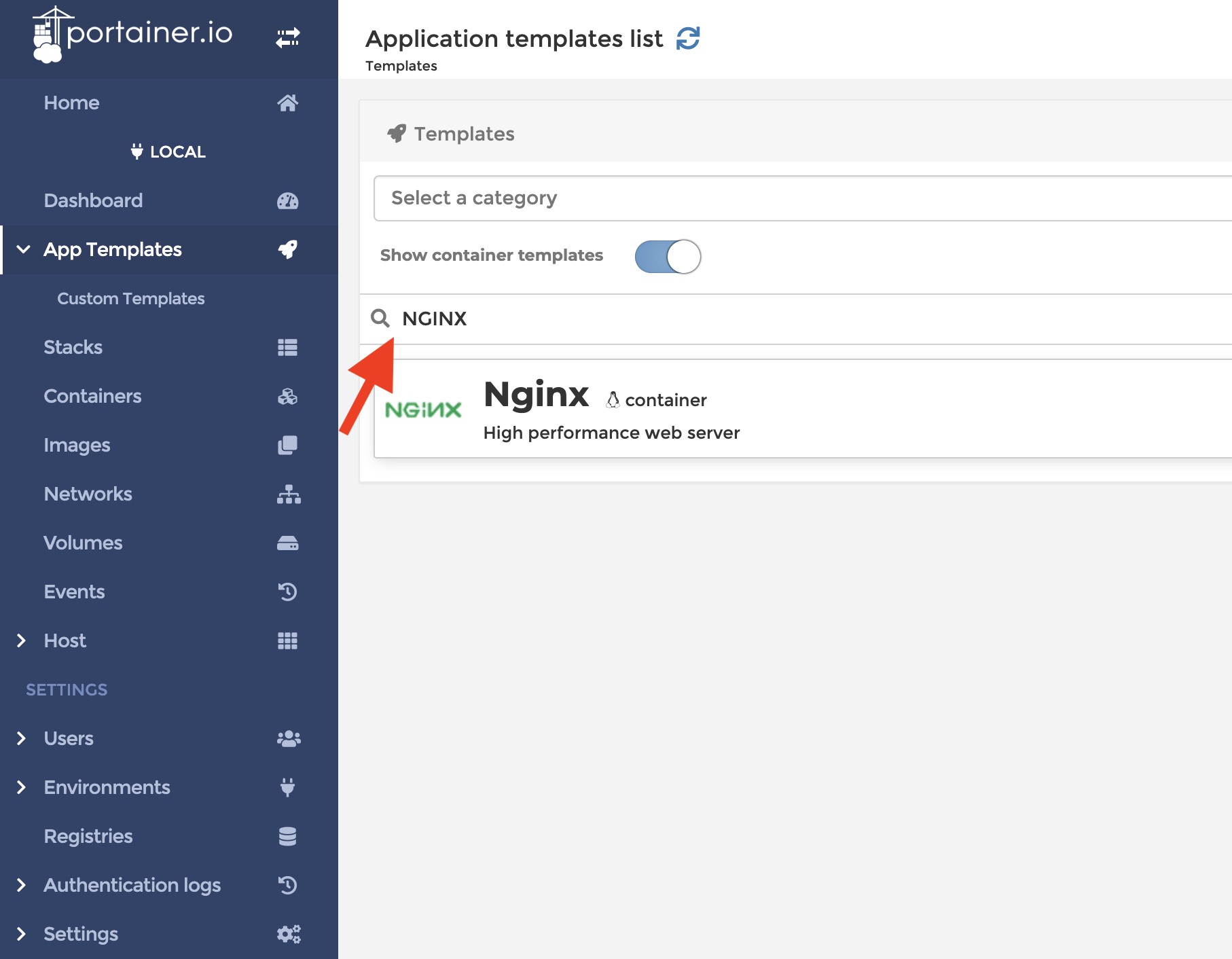
Click Nginx and then click the “Deploy the stack” button.
Find WordPress and do the same.
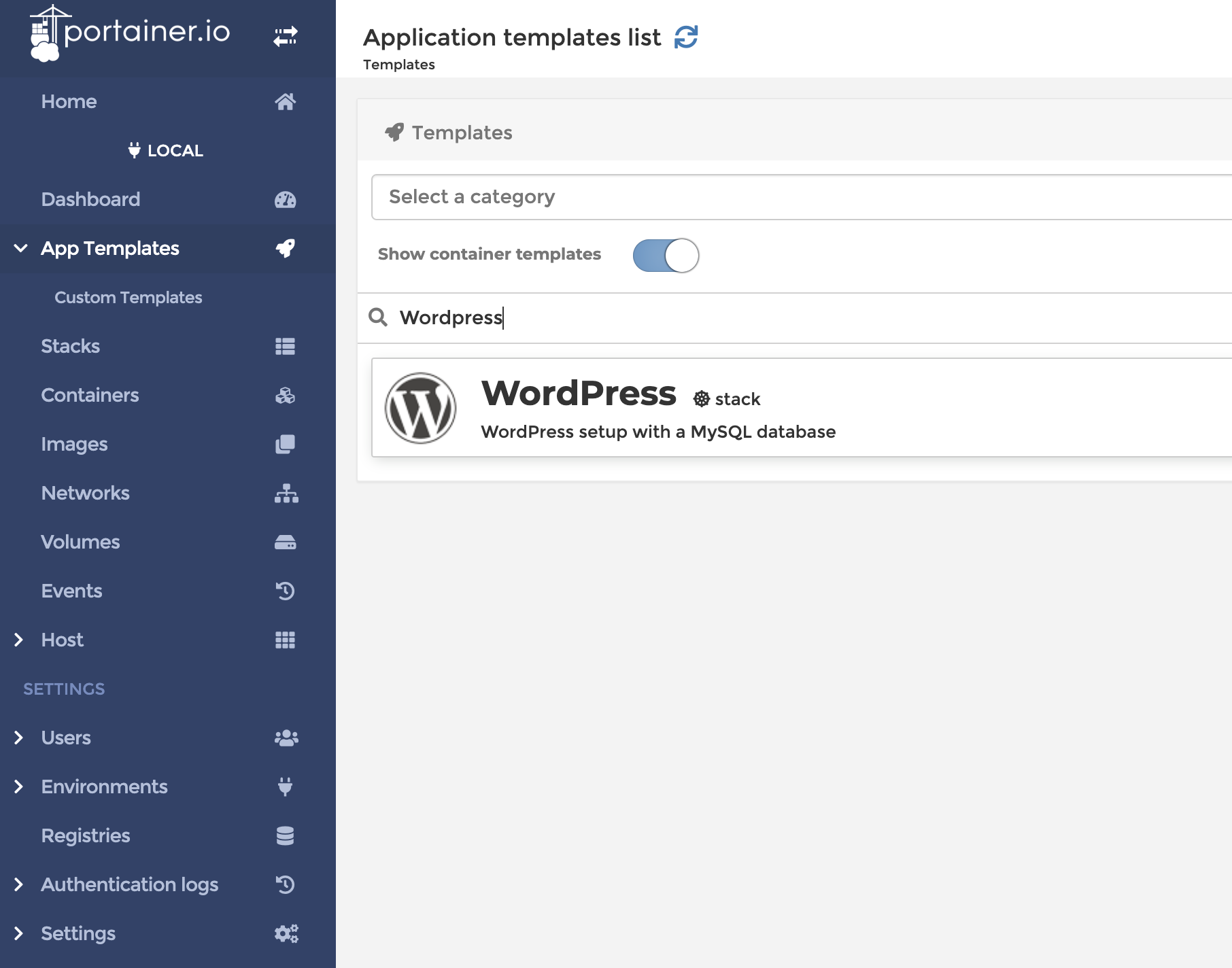
Fill in all required fields and click “Deploy the stack.”
Find “Containers” in the left menu and click “traefik” from the container list.

8. Add Traefik labels for Nginx and WordPress services
Find the “+ Show advanced options” link on the same form and click it. You should see something like below:
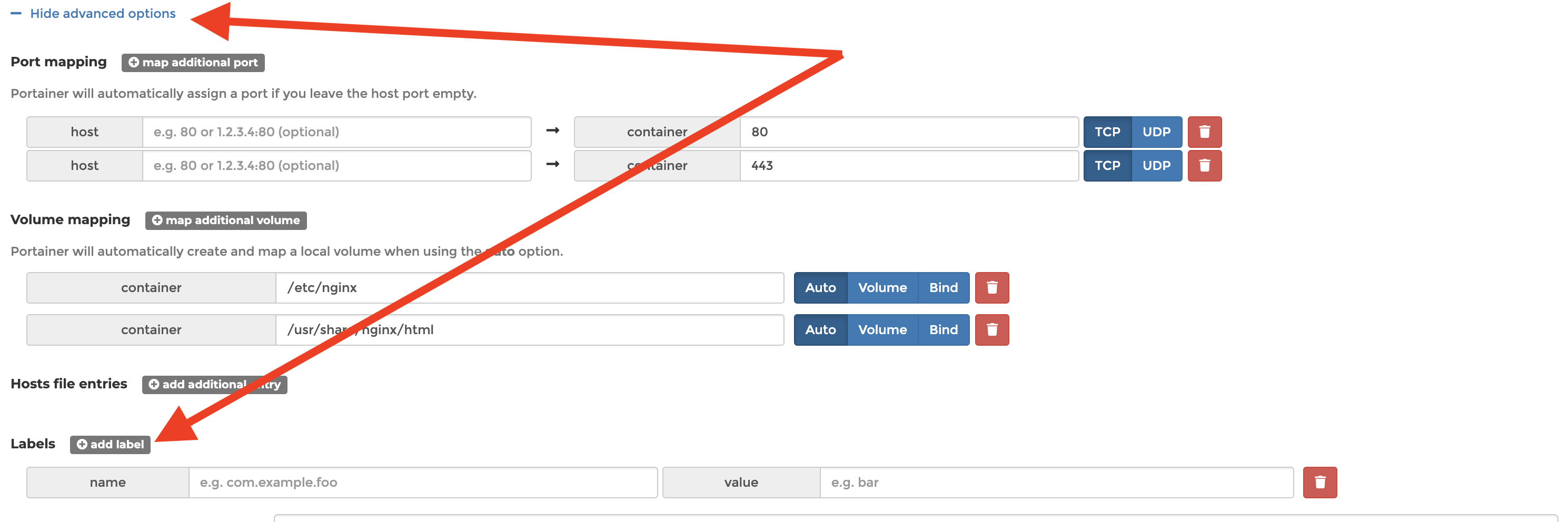
First, we have to add common labels. You can copy the network name from the “Network” dropdown in the same form. It should be something like this: portainer_traefik_default-network
Click the “+ add label” button and enter the first pair of key/value.
labels:- "traefik.enable = true" // enable traefik for app- "traefik.docker.network = portainer_traefik_default-network"
Each additional service should be “labeled”. Each service should have a set of at least four values. Here is a template:
labels:- "traefik.http.routers.service.entrypoints = sweb" // Entrypoint for your app- "traefik.http.routers.service1.rule = Host(`service1.mydomain.com`)"- "traefik.http.routers.service1.service = service1"- "traefik.http.services.service1.loadbalancer.server.port = <port>"
So for Nginx it’s will be:

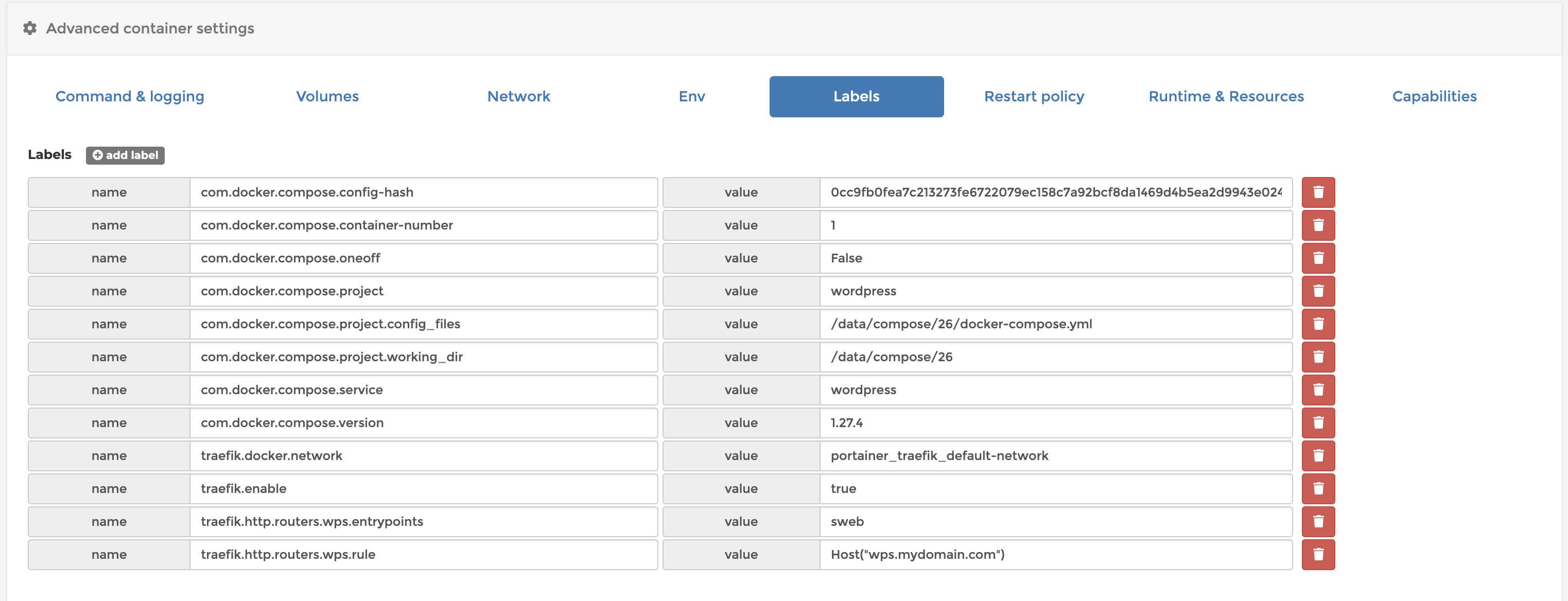
Let’s give the WordPress service a short name like “wps”. Labels would look like those from the following screenshot:
Companion apps

knockd is a port-knock server. It listens to all traffic on an ethernet (or PPP) interface, looking for special knock sequences of port-hits. A client makes these port-hits by sending a TCP (or UDP) packet to a port on the server. This port need not be open -- since knockd listens at the link-layer level, it sees all traffic even if it's destined for a closed port. When the server detects a specific sequence of port-hits, it runs a command defined in its configuration file. This can be used to open up holes in a firewall for quick access.

Fail2ban scans log files and bans IPs that show the malicious signs. Highly recommended for simple VPS server setup

Real-time performance monitoring, done right!
Netdata positions itself as an alloy of the best features that the paid infrastructure monitoring solutions and open-source tools have. Its multifunctionality, velocity, and ease of use make it secure, reliable, and scalable. This tool enables you effortlessly perform your infrastructure slowdowns and anomalies, troubleshooting, and overall system monitoring with little to no configuration.

Wazuh security service